

Update: In the past, Amazon let you reach out to them directly in order to add up to 10 Amazon categories. As of May, 2023, they let authors add the categories themselves, but only 3, and they no longer take requests to change/update a category.
The process for adding your book to other Categories is simple, and if you listened to the last episode, Episode 17, of the Book Marketing Show, you’ll already be familiar with the process and the form you’re going to use.
When you do your research to determine which Categories you book will do best in, try to niche down and avoid very broad categories. But also be sure your book absolutely falls into those niche categories.
[clickToTweet tweet=”Should you rank for 10 Amazon Book Categories? I say rank for what is a good fit for your book. You will have more chances to be a Best Seller and shift with the trends” quote=”Should you rank for 10 Amazon Book Categories? I say rank for what is a good fit for your book. You will have more chances to be a Best Seller and shift with the trends”]
You’ll need the following information when you send the request:
- Book title
- ASIN Number
- Full Category String
Once you have this information, you can follow these steps:
- Click to go to this Help/Contact Page for Author Central and sign into your KDP account
- Under “How We Can Help” select “Amazon Book Page”
- Then select “Update Amazon Categories”
- Then in the box, you'll see the following:
You can submit a single request for all category updates. Add a line per marketplace, using the example below.
Example: ASIN or ISBN, .COM, UK, DE, JP, etc., eBook or book, preferred category
Categories to be added (list each category as a separate line item for all applicable titles):
1.
Categories to be removed (list each category as a separate line item for all applicable titles):
1.
To fill this out, put your book's ASIN or ISBN in there that you want to change the categories, and the market. Then enter in the appropriate category string that you want to be included for or removed from.
A category string looks like this:
Kindle Store > Kindle eBooks > Science Fiction & Fantasy > Science Fiction > Colonization
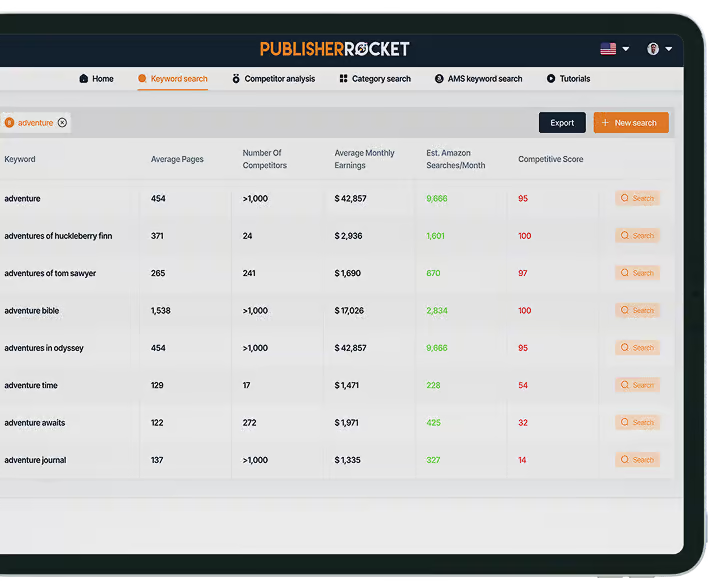
Be sure to check out KDP Rocket and its new Category Search feature to find the best Category string to send to Amazon.
Resources Referred to in this Episode:
- Kindle Direct Publishing
- KDP Selecting Browse Categories
- Author Central Help/Contact Page
- Publisher Rocket
- The Book Marketing Show Secret Niche Amazon Categories and Where to Find Them
- The Book Marketing Show The Power of Book Categories and Sales