The Amazon book categories you choose will directly affect whether or not you become an Amazon bestselling author.
Choose the wrong one, and no matter how many books you sell, you won’t become an Amazon bestseller. Choose the right one, and you could become a daily bestseller with minimal marketing or effort – yeah, it can be that easy… but only if you know what you're looking for.
In truth, there is a lot more to choosing Amazon book categories. There are secret Kindle categories that Amazon doesn’t tell you about when publishing and the simple fact that you can only have 3 Amazon Book categories and ebook categories makes it all the more important to choose carefully.
More importantly, Amazon has made some changes to the way they do categories.
And in this article, I will show you all of that, plus more.
In this article, you will learn:
- Exactly what categories can do for your book
- How to find the best categories to make you a bestseller
- Secret Kindle Categories and how to get them
- How to see all the categories a book ranks for
There’s also an award winning author tool that will do all of this for you as well, saving hours of work by showing every possible Amazon Category in one list.
How to Become a #1 Bestselling Amazon Author
Being a number #1 bestseller on Amazon isn’t just about the cool points, it also helps you sell more books as well.
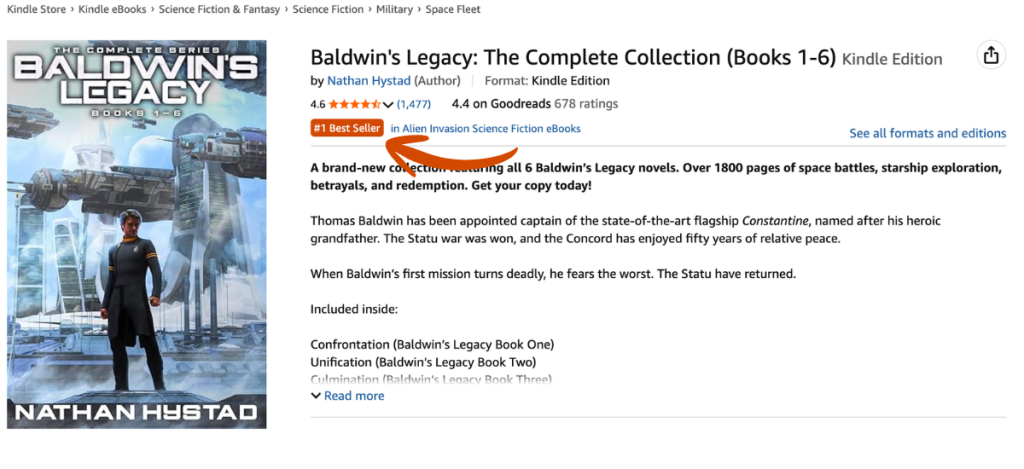
However, how does an author not only ensure they make that rank but keep it too? Well, let’s dive into how Amazon chooses which book is the #1 bestseller of a category. It all starts with your book’s Amazon Best Seller Rank (ABSR).

Amazon assigns the ABSR of a book based on how many sales or downloads it has had over a certain period of time as compared to all other books on the Amazon market.
With this, if you have an ABSR of 1000, then it means that at that point in time, there are 999 books on Amazon selling better than you. If you have an ABSR of 1,000,000, then it means there are 999,999 books selling better than you.
So, if your book has the LOWEST ABSR of all books that are attached to an Amazon category, then you are the #1 best seller in that category. It is that simple.
So, choosing your Amazon Kindle categories or book categories will have a direct effect on whether or not you become a bestseller.
Here’s an example:
If you choose a category where the #1 book in that category has an ABSR of 2,000, then you’d need to have an ABSR of 1,999 or less in order to be the new #1.
Using my Kindle calculator, you’d find out that you’d need to sell over 90 books per day to reach that.
However, if you choose a category where the #1 book has an ABSR of 70,000, then all you need is an ABSR of 69,999 or less. Again, using my calculator, that’s only 3 books a day.
Big difference, right? 90 books vs 3 books?
So, the category you choose has a DIRECT effect on whether you’ll become an Amazon Best Seller and get that attractive bestseller tag.
Now, let's look at how to find the best Amazon categories for your book or ebook.
How to Find the Amazon Book Categories
There are two steps to finding out how to choose a good Kindle category or Amazon book category. Follow the steps below:
For this, I will be using an example. In this example, I will be trying to find a good category for a language book:
But First, the Old Way
Okay, so back in the day, Amazon had a confusing system by which authors could choose their categories.
First, they would go into their KDP dashboard, and choose from a list of BISAC categories. This was crazy because there are only 4,800 categories, but Amazon actually has over 11,000 on their store.
From there, Amazon would take from your BISAC selection and put you into an Amazon category. Then, those who knew of this could use a special form to contact Amazon and request a change of categories, and even additional categories.
However, Amazon has removed this capability.
So because Amazon has removed this option, I'll walk you through a more complete process of finding potential categories.
The New Way
Instead, here is the step-by-step process to research, find, and select Amazon categories:
- Research a list of potential book categories
- Check for the #1 best seller in your chosen categories
- See the list of all Amazon book categories
- Add your categories to your book in KDP
Let's get into each step.
WARNING: Choose Your Categories Wisely
Because Amazon only allows three categories (where they used to allow ten), this makes it even more important than ever that you use a program like Publisher Rocket to select your book categories.
And with Rocket's Category Insights tool, it is easier than ever to not only see the performance of a category today but also whether that category is growing or shrinking.

If you see a category with an upward trend like in the image above, that might be a good sign that your category is a good one to invest in for the future.
Additionally, I have some specific advice to get the most out of your categories.
- Pick Relevant Categories: Authors have been miscategorizing their books (in the hopes of ranking well in low-competition categories) for years now. This will not work for you in the long run. Only pick categories that are relevant to your book. Otherwise, Amazon might boot you from the categories, or place you in other categories that you simply do not want.
- Niche Down: When entering your categories, you want to drill down as far as you can go into the subcategories. These will not only have the least competition, but it will give Amazon a better idea of what your book is about. Plus, if you pick a subcategory, Amazon automatically includes you in the broader categories above it.
- Think Outside the Box: While your book may best belong in a high-competition category, there may be other niche categories that you belong in. For example, if you write an epic fantasy, the category of “Epic Fantasy” will likely be crowded. You should still select that one because it's the most relevant, but maybe your book has Norse Mythology elements as well. In that case, you could select “Norse Mythology” as a second category. Try to pick categories that represent a broad array of interests, rather than three that are all closely related.
Ultimately, picking and choosing your categories is going to be a much more meticulous process. You will want to pay extra attention to Publisher Rocket to analyze the data and only pick the category that best matches your book, but also some categories that are niche and growing over time.

Additionally, this presents a good opportunity to search for new categories that need more books, which you can then target and write yourself.
But even then, there are some major issues with the category options that Amazon gives you, and there are a few things you need to know about this:
Secret #1: 54% of Categories Are Duplicates
Many authors don't realize that the MAJORITY of categories on Amazon are duplicates, meaning that if you select 2-3 of these as part of your three categories, you are really selecting only one.
For example, these three category strings (which can all be selected independently as three categories in KDP), all lead to this single page.
- Books › Mystery, Thriller & Suspense › Mystery › Historical
- Books › Literature & Fiction › Historical Fiction › Mysteries
- Books › Literature & Fiction › Genre Fiction › Historical › Mysteries
Now you may be thinking that I’d recommend staying away from duplicates. Actually, no. They can be a good thing!
First thing about duplicates is that when you select a duplicate, Amazon won’t allow you to select another duplicate of that category.
Furthermore, if you’re in a duplicate placement, if your book’s sales do really well, then you will show up in the sub-categories in all the duplicate strings.
So, knowing which ones are duplicates and the possible category strings you can be a part of is a good strategy.
Now, the only manual way you can figure out whether something is a duplicate is by clicking on a category placement in KDP and see if other categories are greyed out. But this can be problematic because many times duplicates are in different subcategories and even broad categories.
(Good luck trying to find them all, too – we even saw one category with over 15 duplicates!)

However, with Publisher Rocket this is incredibly easy.
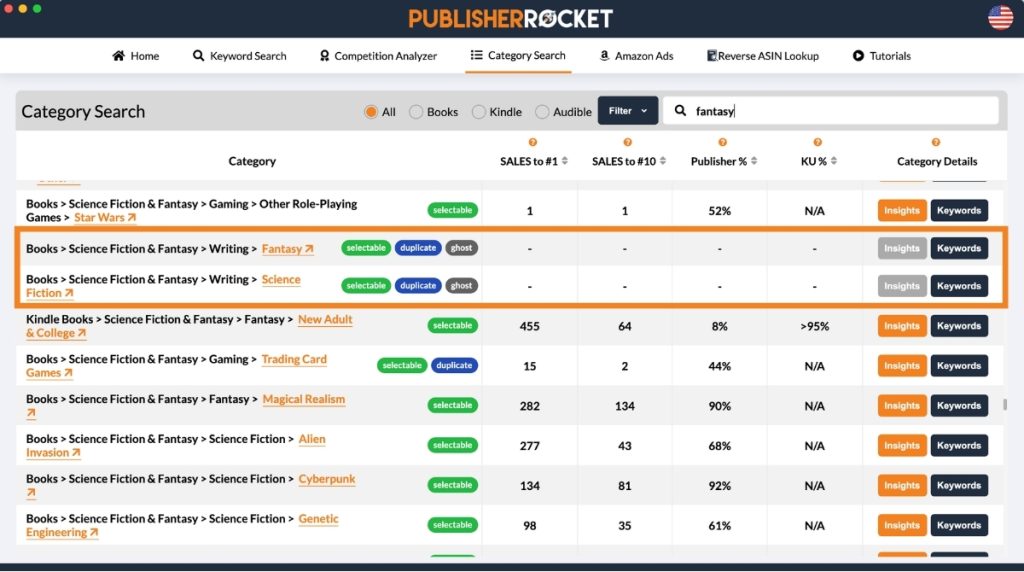
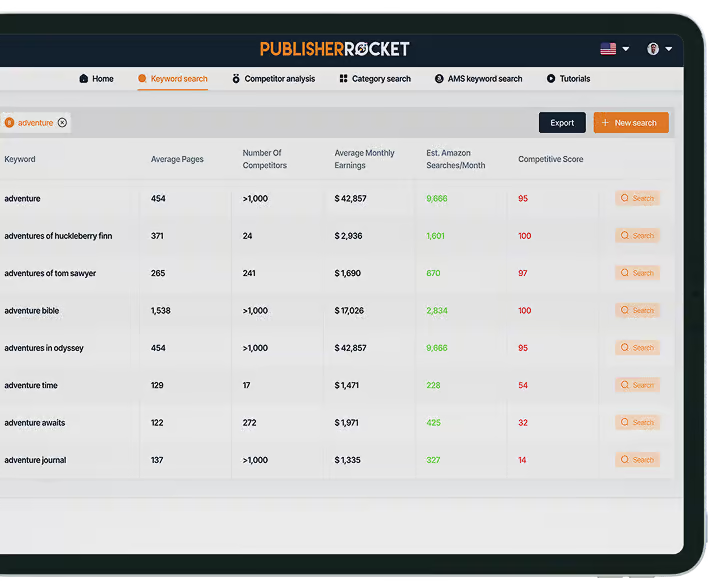
As you can see in the screenshot above, Publisher Rocket will mark if that category is a duplicate and by hovering over it, you can see where the other duplicates are listed. The best option is when you find a duplicate that not only the other duplicates fit your book, but they are in other subcategories and even broad categories.
Then you’re book gets even more coverage.
Secret #2: 27% of Categories are Ghost Categories
This is another EXTREMELY important piece of information. Over 27% of Categories that you can select in the KDP dashboard are what I call a “Ghost Category.”
These are categories where if your book is listed in it, you can't get a bestseller tag for it.
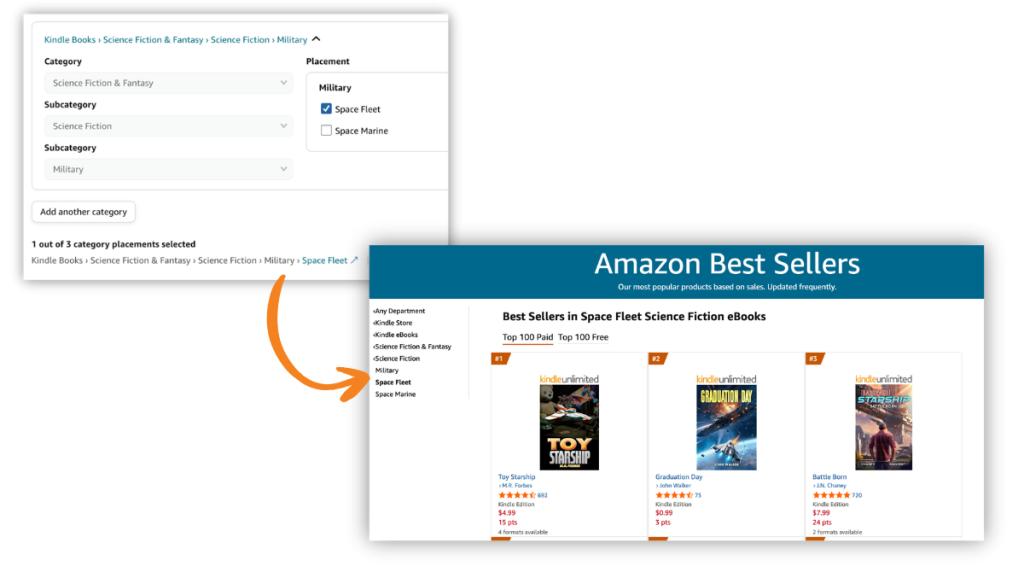
For example, this is what a normal category looks like:

And here is what a ghost category looks like:

Notice that in the ghost category, it doesn’t even have a name. The Ghost category doesn’t have a category path on the left either. Furthermore, you can’t find the ghost category in the category path in the normal.
That’s because it isn’t really a category.
What’s worse is, because of this, a shopper on Amazon can’t even find this category page. They would just have to know the link.
So, ghost categories not only don’t let you get a bestseller tag, but shoppers can’t even find your book in that ghost category. And 27% of categories that you can select in KDP are like this.
Essentially, ghost categories don't directly benefit you, and basically have you compete only in the subcategory above it. However, they might be necessary as the only way to get into the desired category above them.
More importantly, you should absolutely NOT select multiple ghost categories inside of one placement.

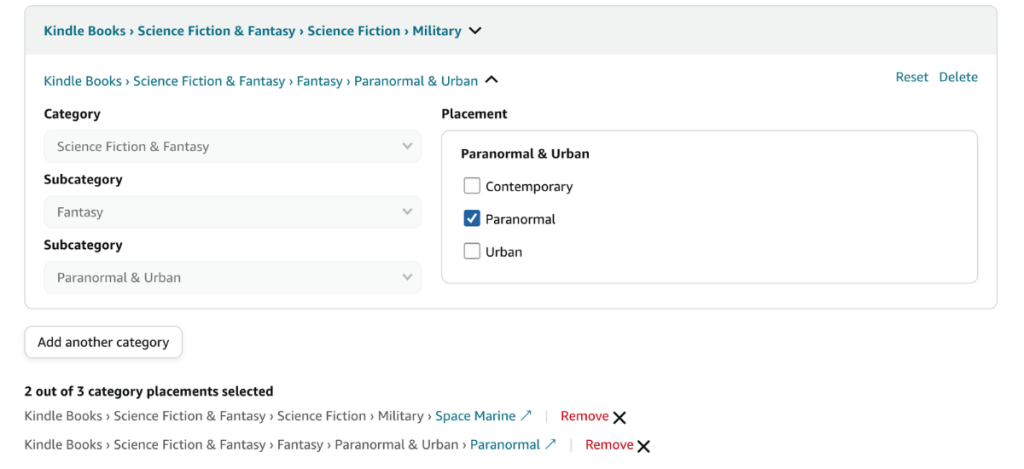
For example, all three of these placement categories in the above screengrab are Ghosts, and if you selected all three, you'd basically be wasting your three choices, and just be put into Paranormal & Urban (the subcategory above it)… and that's it!
Secret #3: Amazon Chooses How Many Categories You Can Be In
What we've seen from our data analysis and in discussions with a lot of other authors, is that you can choose your 3 categories, but Amazon makes no guarantees that you will be placed in those categories.
In fact, we've often seen Amazon place your book in additional categories that you didn't select.
That's because Amazon is not just pulling from your chosen categories, they're looking at the big picture. And they even explicitly state in their TOS that they reserve the right to change the categories you are in:

So keep in mind that Amazon might also be selecting the most appropriate categories based on:
- Your selections
- Keywords
- Your book description
- Your book's content
This is another reason why you should not be deceptive in your selection of categories. If they aren't accurate and relevant to your book, Amazon will likely figure this out and take you out of those categories.
So this is good news and bad news: The good news is that you might be able to get into other categories by carefully optimizing your keywords and other content.
The bad news is that you're not guaranteed that even your 3 chosen categories will be accepted.
Step 1: Research Potential Book Categories on Amazon
Did you know there are over 11,000+ Amazon Categories? But sadly, Amazon doesn’t just list them all in one spot somewhere (except that this program does, in case you want to see all 11,000+)- if they did, I’d be a super happy camper.
Instead, we need to ‘find’ pertinent (but niche) categories.
Option 1: Find Categories for Specific Books
So, to start this, we’ll begin by typing into the Amazon search box any words to describe our book. Our goal is to get a list of books that are similar to our book.

I will then systematically go through each book and check their category list like below:

Doing the above, I checked out other books and found the following categories:
- Language Experience Approach (Kindle Store)
- Education Reference Books
- Language Instruction – Miscellaneous (Kindle Store)
- Foreign Language Study & Reference (Kindle Store)
- Linguistics Books
- Test Preparation Books
- Pedagogy (I had to look up what this word meant… haha)
- Study & Teaching (Kindle Store)
- Words, Language & Grammar Books
- Memory Improvement (Kindle Store)
Option 2: Browse Through Amazon's Categories
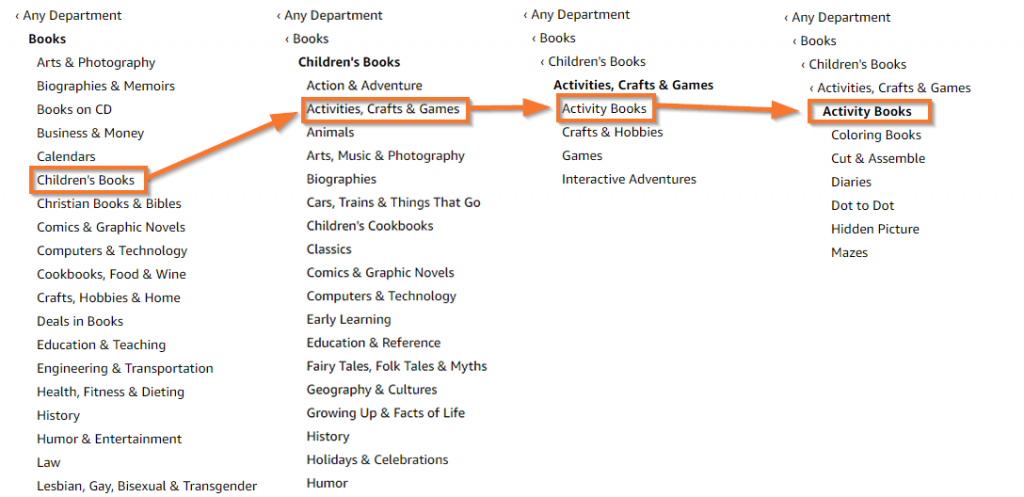
Another option is to simply browse through Amazon's categories by going to the sidebar and drilling down until you find the specific categories that you want. See this image:
Option 3: Use Publisher Rocket to Search Categories
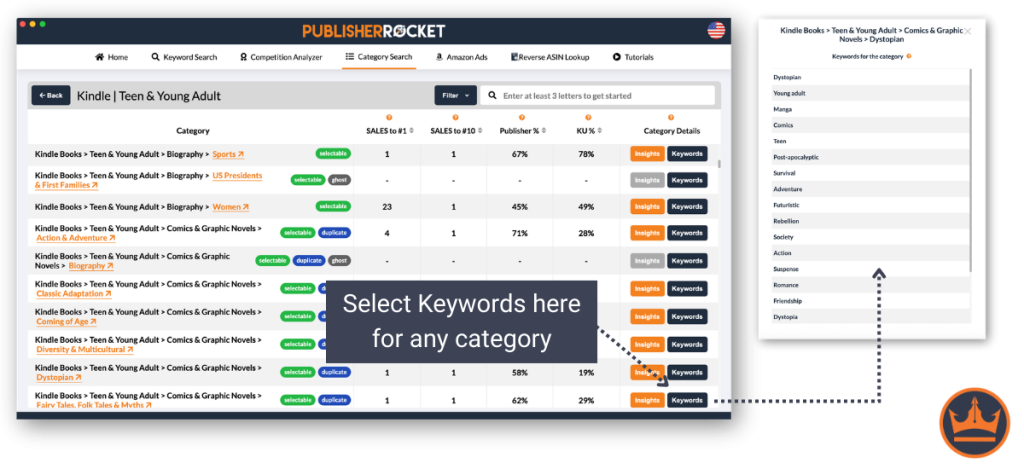
The above two options take a LOT of time to work through. You can save hours of time spent searching through books and categories by simply using the category feature in Rocket.
And not only that, Publisher Rocket shows you all of the categories that are duplicates or ghost categories, so you can make more informed decisions on whether to select those categories or not.

Step 2: Check the #1 Best Seller in that Category
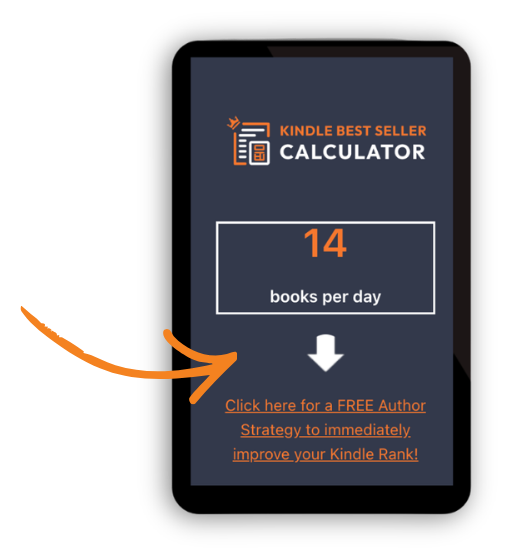
Now that we have a list of potential categories, it’s time to see which one has the best chance of making me a consistent bestseller. To do this, just click category link on a book's sales page.
This will take you to the list of Bestsellers for that Category.
Next, click on the #1 best-selling book in that Amazon book category. Now, go down to its ABSR and record that number next to the category name in your notes. This is the ABSR number you’d need to beat in order to be the #1 bestseller.
Once you have a list of all the categories and their #1 best-seller ABSR, place them into the Kindle sales calculator and it will tell you how many books you’d need to sell today in order to be the #1 best-selling author in that category.
[amazonSalesRankCalculator]
Once you’ve done that, look over your list and choose the ones that best represent your book and have the highest ABSR.
Using my example above, I got the following results:
Amazon Book Categories
| Category | ABSR | Book Sales To Be #1 |
|---|---|---|
| Language Experience Approach | 10,567 | 15 |
| Education Reference | 368 | 237 |
| Language Instruction - Misc. | 19.761 | 13 |
| Foreign Language Study & Reference | 268 | 386 |
| Linguistics | 11,612 | 15 |
| Pedagogy | 552 | 164 |
| Study & Teaching | 15,304 | 14 |
| Words, Language & Grammar | 1,810 | 94 |
| Memory Improvement | 368 | 237 |
| Test Preparation | 155 | 723 |
Looking at this list, my best Kindle categories for becoming a #1 bestseller are:
- Kindle Store > Kindle eBooks > Reference > Foreign Language Study & Reference > Language Instruction > Miscellaneous
- Kindle Store > Kindle eBooks > Reference > Words, Language & Grammar > Study & Teaching
Now, if my book was categorized for these two, all I’d need to do is sell about 13 books and I’d be #1 🙂
*Don’t forget there are different Category strings for ‘books' and ‘Kindle books' on Amazon. They look like this:
Books: Books > Reference > Words, Language & Grammar > Study & Teaching
Kindle: Kindle Store > Kindle eBooks > Reference > Words, Language & Grammar > Study & Teaching
And sometimes they have a Kindle version of a category, but not a book version (or vice versa).
So, if you have a soft or hardcover book, repeat Steps 1-3 for ‘books' now that you’ve identified Kindle categories.
If you don’t have a print book, then you’re good to go.
The Easier Option
Once again, Publisher Rocket makes it much easier to collect this information.
Rather than go through the complex process listed above, all you have to do is select the category you are interested in, and Rocket will show you exactly how many books you need to sell in order to dominate that category.

Once you have that information, along with all of the other helpful data that Rocket gives you, you can easily find those categories that are the best for you and your specific book.
Step 3: See the List of All Amazon Book Categories
Remember, there are over 11,000+ categories on Amazon.
To do the steps above correctly, it could take you hours to click around… hoping you find the right category. The worst part is that Amazon doesn't show you every category in one spot.
And sadly, there is not list for every Amazon Book Category or Amazon Ebook Category… except for one: Publisher Rocket.
One particular feature of this award-winning software is that it lists every possible Amazon book, ebook, and Audible category on Amazon, and tells those valuable numbers we discussed above.
You can see exactly how many books you need to sell to become the new #1 bestseller. This feature is a favorite amongst both publishers and self-publishers alike.
You can also arrange the book categories from Easiest to Rank #1 to hardest. Check it out:

See, just like that, Publisher Rocket will immediately:
- List all the categories books show up for
- Tell you how many books you’d need to sell in a day to be #1
- Tell you how many books you’d need to sell to be in the top #10
And just like that, you can now select the best categories for your book and know exactly how many copies you’d need to sell in order to be #1 or just to make it in the categories' Top 10 – all with a simple click of a button.
Percent KU and Percent Large Publisher
Additionally, you can analyze all of the categories for the percentage of top books that come from a large publisher or are enrolled in Kindle Unlimited.

This should give you a good idea on whether you should enroll your book in KU or publish wide.
Talk about a major time saver, as well as some good data!
Historic Category Data

With Rocket's new historic category data, you can now see the history of the performance of all 11,000+ categories over time, as well as additional insights to help you make wise decisions for your book and how it should face the competition.
With this new data, you can now see the following in one convenient place:
- The # of sales to get to #1 or #10
- The percentage of bestsellers enrolled in KU
- The percentage of bestsellers that come from large publishers
- The average price for both indie and large-publisher books in that category
- The average age of books at the top of that category
- The average rating of books at the top of that category
- The average page count of the top books
- A trend line of sales for books in that category
- Unique overview and insights data tailored specifically to that category
Step 4: Adding the Categories to Your Book in KDP
In your Amazon KDP Dashboard, you have the option of selecting up to three Amazon categories for each book.
You can read about how to do this in Amazon's documentation, or follow these steps:
How to set up categories for a title:
Note: These instructions work for new titles and existing titles. Just understand that with existing titles, you may be replacing categories you already selected.
Step 1: From your KDP Dashboard, navigate to the “Book Details” page, which is also the first page that you see when starting a new book.
Step 2: Choose your preference for Sexually Explicit Images or Title, which will then enable the Choose Categories button. Note that your categories will be more limited if you select Yes for sexual content.

Step 3: Under the section labeled Categories select the button that says Choose categories.

Step 4: Select your main categories and subcategories. You'll want to niche down as far as you can go to find your categories, then select from the check boxes the categories that you want the most.

Step 5: Repeat with other subcategories. You may not find all your categories within a given subcategory, so in this case, you'll want to hit the button that says Add another category to find another subcategory that your book can live under.
All of your selected categories will be displayed at the bottom of the window.
What Categories are Available?
Because some categories require various restrictions in some areas, Amazon does have additional guidelines for certain categories. These include:
- Children's/YA Categories: Books that are meant for Teen or Children's audiences will not appear unless you have set the recommended reading age for something under 18 years old.
- Comic Books/Manga/Graphic Novels: Books in these categories should be genuine comic books, not just illustrated books. Amazon says they must be a “fixed layout comic format book.”
- Kindle Singles/Short Read: These categories are assigned by Amazon themselves, and are not available for authors to select.
- Companion Books: These books like summaries, study guides, or analysis books can only be added to the “Study Aid” category on Amazon.
Extra Tips and Tricks to Amazon Book Categories:
- The ABSR changes every 2 hours, so what it takes to rank #1 can change as well
- New books enter the market, which can quickly change a GREAT category into a super hard one. Keep an eye on your categories and change as necessary
- Having tools like Publisher Rocket can make selecting or changing categories very fast, efficient and effective.
- Make sure you are moral about your choices…nothing grates my cheese more than seeing books that don’t belong in a category taking up the spot
- Don’t forget to do the same research discussed above but for ‘books' if you have a print version
Secret #1: The Categories Shown in KDP Are Amazon Categories, Not BISACS
You may have heard the term “BISAC categories” thrown around before.
These have long been the industry standard for selecting categories. And even Amazon used to use these when you would upload your book to KDP. The categories you would select there were BISACS, not Amazon categories.
But that changed in June of 2023 when Amazon changed their system to use their own Amazon categories instead.
This was a great change for authors because it allowed authors to drill down to a more specific and appropriate category.
Secret #2: How to See All of the Categories a Book Ranks For (because they're hidden now)
Now even though you only select 3 categories, it is possible that Amazon might automatically place you in more (although this is not guaranteed).
So how would you see all of those categories if you're placed in them?
We can see three listed categories on the main Amazon page, but you couldn't figure out how to see them ALL… until now.
In this video, we show you how to see all the categories a book is listed for (plus offer other helpful insights):
If you don't have Publisher Rocket, there's another way you can check if Amazon has put your book in the 10 categories you've selected, though.
BookishNerd has created a tool that tells you which categories your book is in. All you have to do is input your book's ASIN or ISBN-10.
You can check it out here.
Now Go Get Listed For Your Ideal Categories and Become a Bestseller
So, now that you know the power of categories and what it takes to rank #1 for a specific Amazon Book Category, it’s time to take action.
Of course, as bestselling author, Jeff Goins says, “Before you can launch a bestseller, you need to write a bestseller.” Then you need to implement these steps to find the best book category for your book.
Now, whether you’re using a tool like Publisher Rocket or doing it by hand, it’s important to keep checking your categories so that you can always ensure you stay at #1 and gain those extra sales because of it.
Publisher Rocket can save you hours of researching for the best category. Increase your Category research efficiency and effectiveness for a one-time fee of ONLY $199. Soon, we will be making it a subscription. So lock in your lifetime access now!
And with that, you should have no problem landing in the #1 bestseller position.


This is very useful, Thank you Dave. got my rocket
Awesome!
This helps so much. Thank you!
Thanks for this info! Very cool tips =)
Glad to help!
Sorry Dave for the misunderstanding and thanks for your time analyzing the different probabilities of my problem ..
it’s weird what’s happened to me, because I had simply added 3 categories while keeping the original ones.
My big issue is that my ranking was lost in these old catgories and other competing paperbacks have taken my spots (most are new with bad covers and no customer reviews)
Could it be because Amazon’s algorithm decided to redo its calculations for my books with the addition of new categories?
So, you were still a part of the same categories, but you added more. There’s no reason why more categories would have had a negative effect on you. It’s probably that those new books are new and are doing big promotions and such, and so their ABSR is probably better than yours which is why they have taken a better category rank than yours.
Hello Dave, I was interested in the Publisher Rocket, But I have a question, it works for e-books in Portuguese, published in amazon.com.br, Brazil?
I was waiting for your or someone’s help and you deleted my comment instead? This is ridiculous bro!!
Not sure what you mean – your comment is there bro they just require approval since we get spammed. As for your comment though, the only way you would have lost sales is if your original category was a category where people go to the category because they LOVE to just buy books from it. Also, you have the ability to add up to 10 categories? If you really thought your originals were so good, why not keep some of them and just add to it? Also, you need to actually tell Amazon to remove you from categories – did you request they remove you from your original? Either way, I highly doubt your loss was because you moved out of some highly purchased category.
Hi Dave..
Remember when I asked you the 1st may if my paperback’s sales will not regress if I change categories? You told me that they will not, but unfotunately it’s exactly what happened..
I changed categories of 7 of my kdp LCB which are making me together about $40 a day, and now, I bearly can make 2 or 3 sales..
even worse my books are no longer discoverable when I type the keywards they are ranked for..
Your publisher rocket is a great tool, i love it, but i regret i used the category changing feature..
if only I can go back in time and leave my categories as they were before!
Thank you
If my paperback is selling quite well, then i change categories, will this affect my current sales?
Thank you
Shouldn’t, nope.
Hey Dave, this was super informative! But how much does being a bestseller actually contribute to increased sales? If I were to hold the title in a category for a few days, is it likely I’d actually see more people purchasing my book?
I guess this is why the most random titles come up when I search by category for a book to read!!!!! It’s so irritating searching, eg, for fashion guides and seeing cook books, collections of memes or dirty fiction. Religious books come up under crafts, erotica under sewing, it’s a total hotch potch. Amazon should control authors and categories for the sake of their readership base, not let them run riot as you’re suggesting.
Agreed.
Dear Dave,
I do have your rocket but have invested in a new computer. How easy would it be for me to get rocket installed on my new laptop?
Thanks in advance
No problem – just contact support (PublisherRocket.com/support) and they’ll get you hooked up.
Hi Dave,
Your Book Category Hunter link is priceless! I purchased KDP Rocket a little over a month ago, and have learned how to manipulate it, but have been hesitant on the picking of categories. The BCH link will definitely help me make some decision.
Awesome and super glad to have helped!
Thanks for this terrific information, Dave. I love Publisher Rocket!
I have around 20 books out in two series. If I add 10 categories for each book, will they compete against each other? And is that a bad thing?
If they are in the same category, then yes. But that isn’t a bad thing.
Thank you so much for this!
If you go back in to edit your book at all will that reset the categories after they add additional categories for you?
Nope. They’ll stay the same.
Hi this was really helpful but when I followed your instructions my original categories were taken off and replaced only with the three ones I’d added. Did I do something wrong? Thanks!
Hmm…did they actually remove your book from those categories or is it that you don’t see those original categories on your sales page. To see which categories your book is actually a part of, use this tool here: https://nerdybookgirl.com/book-category-hunter/
Thank you for that amazing tool! I’ll definitely recommend it to the followers on my blog!
Glad to have helped!
Hi Dave
Does Publisher Rocket only work with USA Amazon? or does it work with Amazon in UK or Australia.
I am bringing out local versions of paperbacks and e-books in different markets.
Thanks
Philip
It works in the US, UK, and German markets.
Hi Dave,
Can I use 10 categories for each marketplace? I see for example that the US and UK marketplaces have different categories.
Thanks for the great info.
Yes you can and I’ve got an article all about that: https://kindlepreneur.com/international-book-categories/
Thanks for this Dave! I’m working through it as we speak 😉 Does this article apply to Kindle only, or also to paperbacks? Andy
Both! And you bet 😉
Okay, thanks – I saw that further down the article as well, in the end 😉 Just finished the article tonight and uploaded my new categories to Amazon in the English- and German-speaking countries 🙂
Ah, super cool. Enjoy!
Nice one! Thank you!
Glad to help!
I bought Publisher Rocket a while ago and used it for my new book’s categories. Subsequently, in a week, my book got to #1 in two them and #5 and under in two others. The categories are pretty ‘nichy’ but maybe someone will say, “What’s this about?”. It was a real boost to see it. BTW, I had no trouble with Amazon adding 6 categories. They did it within 3 hours.
On another note, has Amazon put out a new version of Author Central? I can’t figure out how to add editorial reviews or modify my book’s description.
I think your videos are terrific. You act like you really want self-published authors to succeed rather than churning out videos just to have a long list.
Hi David, congrats and that’s awesome. As for Author Central, yes they did. I’m currently working to update some information to reflect that. Also, thank you. That means a lot to hear 🙂
I followed your advice and after a successful promotion my novel made it to #1 in the category I asked them to insert my book! This ranking lasted for 1 day. My question is how can I capitalize on that? How do I get the coveted gold ribbon on my cover? Can I just ask them and prove to them that my book was ranked #1 for a period of time?
No, the ribbon shows up when your ranked #1 so in order to keep that, you need to keep up your sales. But having 10 or so categories, and keeping a good marketing plan, you have a higher chance of maintaining such and benefiting from it over time.
Categories – I cannot copy a category from the rocket list of categories as your video says. Where can I do this?
If you highlight the category, and then right click with your mouse, and select copy…voila. You should be good then.
Does it make any sense to put an Ebook in “Book” categories if they closer represent the content of the Ebook? Or should I just keep my Ebooks in only the “Kindle Store” categories and my paperbacks in the “Books” categories?
If you only have an ebook and not a book version, then you should only put it in an ebook category.
I really appreciate this article! Im new to Kindlepreneur and Publisher Rocket and just got the software. I love the product and have already started to apply some of this to my books.
I believe Amazon has updated their system so the last trick doesn’t work (entering the ASIN in the search bar to see all categories for a book). Is there another way to do this for a book that anyone else has found?
Awesome and glad to hear it. As for your question, with Rocket use the “Unleash the Category” feature in the competition analyzer. It pulls all the categories for any book listed.
Just wanted to express my devotion to Publisher Rocket. For two years and four novels, this has been the most helpful tool in my marketing-writing toolbox.
But you can’t stress enough that this is a tool. It is the R2D2 of tools and will make your Amazon adventure faster, funnier, save your ass at times, and greatly reduce your odds of imploding at light-speed, but you have to be the pilot. You need to watch Dave’s tutorials, you have to think like prospective buyers with money instead of a lofty writer with no money, and you have to research and try different things based off your book, style, and fit. This is the perfect tool to help you do all of that. Worth 3x the cost to me.
Keep up the good work! Love the new update!
Wow…that totally made my day to read. Thank you and super glad you’re loving it. 🙂
Your content is amazing, Dave! Does Rocket work on an Android tablet?
Thank you. As for Android, no. Just Windows and Mac.
I love the Publisher Rocket! However, I understood it like you get 10 categories in total for book + ebook. So if you split it even, five categories for each. So I went through the process to update.
But, I can see one other book on my topic has 11 categories for the ebook and 8 for the book!
Did I understand wrong? What is the real limit for each of them?!
Best,
Kristofer
10 for book and 10 for ebook.
So it’s 20 categories in total? 10 for the ebook and 10 for the paperback? Or is it 5 for the ebook and 5 for the paperback? Just making sure I have this right before email Amazon? Please be clear… Thanks
20 in total at the moment.
Has this changed? I just tried to follow the steps in Step 3 to see all the categories and it is only showing books.
Yes, amazon got rid of the ability to do step three. Now, the only way to see categories is if you have Publisher Rocket, or use Nerdy Book Girl’s Category Hunter tool.
Great info. Thank you! I sent in a list of categories after looking at the kdp list. They mention that these are BISACS so they get assigned to categories. Some of the assigned categories they choose do not quite match what I was going for. For example, my book is non-fiction and I provided a list of all non-fiction categories, and I got one of the categories listed as Lit and Fiction>Genre Fiction>Historical. I did not intend for this? How do I approach my list vs the categories they assign? How do I make sure I am in the right category I intended? Thank you!
Secret #2 and #3 above will teach you how to do all of that.
Has Amazon changed this recently? I have done it following your guide before, but tonight it prompted me to call rather than email (which I normally do), and the help page I was directed to before calling says only 2 categories. It looks different than normal. Am I crazy?
That is very strange. I haven’t seen that yet, and I did the process on Friday so as to film a sequence of something coming out (new Rocket update and added features – so I needed new tutorial video).
Yes. I saw the same message when I was about to submit. It said to call and that only two categories would be allowed. I was trying to figure out if maybe Amazon had updated their policy and people were no longer being allowed to have 10 categories, or what was going on. I guess it doesn’t look like anyone has posted recently saying they’ve gotten 10 to go through…
No, it still works. You just need to try again.
how do I find the best category for comic books/ children’s books/ children’s literature
Either use Rocket and look at those specific main genres, and organize from easiest to hardest. Or you manually go to Amazon and search through all the different links to discover what you’re looking for.
Hey I am loving the software – absolute life saver! You mentioned in a video that it is a good idea to find One category you will be able to rank #1 in and then a more competitive category to help boost exposure to your book – I was just wondering if you have any articles/videos explaining this further?
Hi
I’ve interested in purchasing Publisher Rocket but first wanted to check if or how you can limit searches to only include children’s books. My books are aimed at 8-12 (mid grade) so I would only be interested in getting results based on that age range.
Thanks for all the great advice!
It would require you as the author to know if the term fits your book or not and age appropriation. However, the information it provides is valuable in helping you to figure out which terms you are thinking of would actually benefit your book, and help you to dive a bit deeper.
Hi Dave, just got the Rocket and very much looking forward to putting it into practice! I’d been choosing my categories laboriously ‘by hand’ since publishing my 1st, 4 years ago – and was gritting my teeth to do my next book, then start a similar process with keywords. It takes so long when you should also be writing, and earning a living! (not that the latter is possible right now :-/ )
Looking at Category Search, I’m not sure which is best to prioritise – ABSR, or number of sales to get to #1 . I didn’t have the sales info before, so it wasn’t a choice. Which do you recommend?
Many, many thanks,
Lynn
Hi Lynn. The numbe rof sales to get to #1 is the better number. With that, you can take action. With just the ABSR, it gives indication.
Somewhere you mentioned that there is a list of categories that have a keyword, that if you use it, you will automatically get added to that category without having to request it (I’m not sure if it was in this blog post or one of the other ones). I couldn’t find a link to this list of categories with magic keywords. And my searching didn’t find it either. Can you steer me in the right direction? Thanks! P.S. I purchased Publisher Rocket.
Hi Nina. The good news is that you no longer need the keywords. If you request to be added to a category like discussed above, you’ll be added…regardless of whether it is a category that requires a keyword. The keyword thing is only if you ‘hope’ to naturally be added automatically by Amazon.
Hey! I am not able to find books which have high ABSR with #1 bestseller in a category. Just as your screenshot attached above.
All the books I am clicking on either have a low ABSR or are not bestsellers in any category.
How can I find that?
You can either use Publisher Rocket, or just keep clicking around to see if there is one.
Dave, the process for requesting that Amazon place your book in certain categories has changed. You now need to go to: https://authorcentral.amazon.com/gp/help/ref=AC_CU_Books-update-browse-categories-dyk?topicID=200513090.
Once you’re there, scroll to the bottom and click on the “contact us” link in the last paragraph of the “Categories” section. Then, do the following:
On the Contact Us form:
Under “Select an issue,” select My Books.
Under “Select details,” select Update information about a book.
In the fields that appear, select browse categories, and then I want browse categories in the Product Details section.
Your way works too. But I just tried the link in the article above and it worked for me, plus no one else has reported the issue with the link. So, not sure.
Is it better to try and be number one in a low ranking niche (over 100,000) or try to find a niche with a much higher ranking number 1 under 20,000?
That depends on your marketing effort and whether you are sure you can reach it, as well as whether or not its a good fit for your book.
Hi Dave,
Is it no problem to select the categories that are not related to our books content?
For example books for kids activity word search. Category we have selected is linguistic.
Thank you.
I wouldn’t recommend that.
Hi Dave,
Can I use Publisher Rocket for multiple titles, e.g. if I help other authors to self-publish and act as their publisher… and does Publisher Rocket need a PC or can I use it on a Mac?
You can use it for those projects and it works on both Mac and PC
Thank you so much, Dave. This is great. Much appreciated.
I thought I’d read somewhere recently that the category strings for Amazon.com are different than they are for their other markets, i.e. Amazon.co.uk, etc. Is this the case? And if it is, can you ask to be added to more categories for each market?
Oh, and, one more question – can you submit the request for additional categories before the book is actually for sale? If it’s on my bookshelf and ready to go, but isn’t going to be released for another couple of weeks, can Amazon still add the categories?
Thanks so much!
No, you need to publish the book first, and then contact them to add more.
That is the case, and I’ve heard there is a way to do it (as in you’re publishhed in the US market, but want to make changes in the UK market). I’m just not familiar with the process.
Hi, Cat and Dave!
Yes you can add extra categories on the UK site, and it’s straightforward – same process, you just have to do it twice.
There is a different Author Central for Amazon UK – and from what I remember, your KDP log in works for both? (You can use the UK Author Central for other things too. eg, editorial reviews you add on the US AC don’t tend to show up on the UK site, but if you email them they’ll add for you)
So once you have drilled down on the categories you want for your book in the UK, you drop them an email via Contact Us, with your ISBN/ASIN and the strings for each category.
Many of the categories are the same for both – it’s just a few different. (I’ve only just got Publisher Rocket, so was doing both sites by hand! About to launch supercharged into the US categories now)
best, Lynn
super helpful. thank you!
Glad to have helped!
Superior information. Thank you.
Question: How does Amazon help my book if I’m number 2 or 3 in a specific category?
Another question: If my book is number 1 in a category does Amazon give me a little bit of advertising?
Q1: If you’re in a category people shop or look at, then that will help. If not, then not really.
Q2: Yes, and you get the Bestseller tag to show up.
Hi there! Is there a way to do this through KDP as opposed to Author Central? I work for a publisher so it would be easier for me to do this through KDP. Thanks in advance!
What do you mean by ‘this’? Requesting them change and add the categories?
The info in this article is great as is Publisher Rocket–what a time-saver!
I’m hoping you can clarify something for me … If I have an electronic version of a book as well as a paperback version, am I able to identify 10 categories for the electronic version (I assume a mix of kindle and book categories is ok) and then also 10 categories for the paperback version (again, I assume a mix of kindle and book categories is ok)?
I guess I’m getting confused because in the tutorial video and the article you mention a max of 10 between kindle and book.
Thanks so much!
As it stands right now, yes, you can. 10 for each.
Thanks for the clarification, Dave. This was something I’ve been wondering about myself.
You bet!
QUESTION: Can you do this when a book is in preorder or do you need to wait until launch?
No, you’ll need to wait.
I’ve found your category blogs and videos very helpful. Is there a way I can locate the exact rank for each of my book’s categories instead of just the three that Amazon shows? and am I correct that they only show the three a book ranks highest in?
Not sure how or why Amazon chooses to show the 3 on the page.
Brilliant article. I had no idea any of this even existed. Thank you.
Question: can publisher rocket drill down to different amazon markets e.g. .com .co.uk .in. If so, how?
It can for the US & German market. Soon it will be able to to UK, Canada and later on, Italy.
Thanks so much Dave for this information. However, I have some questions for you.
1. Do I need to research for categories to place my before I commence, or I should finish writing first before searching for categories to place it while publishing?
2. Can I also follow these steps to change my books (already published) from a nonperforming categories to the new ones I just researched?
3. Knowing that eBook don’t usually have ISBN, so what do you quote, instead,while mailing Amazon to change the category of your book which only is on eBook format(no format)?
4. Am a bit confused about how the calculator woks. From your example above, a book with ABSR of 70,000 needs to sell 3 copies to hit #1 in that category, while another book with 2,000(or 20,000) needs to sell more copies to hit that #1 rank in that category. How does this really work please?
1. Finish writing first.
2. Yup
3. ASIN
4. Because that’s how Amazon’s Best Seller Rank (ABSR) works.
Thanks Dave for your prompt response. Please, what does ASIN stands for, and how do I get it? I am relatively new to KDP.
Thank you.
Phil, ASIN is an Amazon specific “ISBN” it’s their identifier for books (or products) published or sold on Amazon. It stands for Amazon Standard Identification Number. It’s how they keep track of inventory and many other details about products, including books.
Thank you Patty for the further clarification. I truly appreciate.
Hi Thanks for the awesome information.
I have a question – is it possible to get removed from a category?
Thanks
Yes, just ask them using the same process.
If you are outside the US, you can sign up with the Talkatone App and get a free US number to use with your KDP/Amazon account. Then you can call in instead of using the email option when wanting them to add categories.
Nice recommendation!
Hey.
Isn’t the calculator global? I mean if it shows that I need to sell 20 books per day, that isn’t restricted to the U.S but like anywhere from the world people buy and my book can get a better rank, right..?
No, the calculator isn’t global. The Amazon Best Seller Rank is specific to that market. Just because a book is listed with an ABSR of 1 in France, does not mean it is 1 in the US.
I have a book which ranks 3251 in amazon.in and the calculator gives 65 book sales a day. But it sells average 1-7 copies in a day.
Why this difference?
thanks for all the good input you provide.
That’s because this calculator is for the Amazon.com US market. Not India.
Awesome info Dave, thanks heaps. People like you are what the indie world is all about!
Awe…thank you!
This worked, other than the fact that author central does not handle this(at least for me) and transfered me to KDP. But, the process was easy and smooth. Thank you!
Awesome, well glad it worked out!
Do you do paid consulting work?
No
Hey Dave, this calculator doesn’t seem to take the specific category into account?
i.e. Calculating daily sales for #1 BSR in Business would be wildly different than daily sales for a #1 BSR in “Basket Making”…. right?
P.S. Basket Making really is a book category. 🙂
That’s because this isn’t a category calculator. It is a calculator for the Amazon Best Seller Rank (ABSR). Not the Amazon Category Rank. So, put in a book’s Amazon Best Seller Rank into it and you should be good to go.
Hey, do you know if this also applies to the Amazon in Germany, specifically your calculator and Publisher Rocket?
Yup, most definitely does. Also Rocket has the German market in it and has been fine tuned to give accurate information specifically for the german market. The Calculator does not.
I’ve got ten categories ready for Kindle and ten for print, but do they only allow ten for BOTH? I thought I read you’d said ten for both, but can’t see it.
So, should I get the best FIVE for each and put them in best order of Kindle, print, Kindle, print. . . etc?
Example:
Kindle Store > Categories > Kindle eBooks > Teen & Young Adult/Science Fiction & Fantasy/Science Fiction/Action & Adventure
Books > Subjects > Young Adult/Science Fiction & Fantasy/Science Fiction/Aliens
and so on x10?
You can do more than 10. What the exact number is…well that changes. As for your second question, yes.
So, 10 for each (Kindle and hard copy), or 5 for each? Thank you Dave – already have Rocket – fab!
10 for each. As for Rocket, awesome to hear!
Hi Dave, Thank you, your topics are always superior. I have a question. I was the first in a certain category , and after a time I got down off my rocket, I went down to the bottom, for example. i was in number in category #1 after few days i get down to #25k how i can keep of my ranks in categories
thanks again
In order to regain your ranking in that category, you need to sell more books than the book that ranks #1 in that category.
If you have a kindle and print format for you book, is it worth it to use different categories for each format in order to maximize visibility?
I do, and yes.
Do you help an author with category selection (for compensation)?
Nope…I don’t have any services like that. Sorry.