Scrivener is one of those writing tools that authors tend to feel strongly about.
Some writers swear by it. Personally, it’s not the tool I use these days. But there’s no denying that a huge number of authors love it, especially for planning and drafting long projects like novels or nonfiction books.
And one of the reasons Scrivener has such a loyal following is the way it handles templates.
If you’ve never used them before, a Scrivener template is basically a pre-built project structure. Instead of starting with a blank page, the template sets up things like folders, chapter outlines, scene placeholders, and sometimes even character sheets or research sections. It gives you a framework to start writing immediately instead of building everything from scratch.
For a lot of writers, that structure is incredibly helpful. Especially if you’re working on something big like a novel and want a clear way to organize scenes, plot threads, and notes as you go.
Below you’ll find a collection of some of the best Scrivener templates available. Some are designed for fiction, others for nonfiction, and a few are built around specific story structures.
Quick aside: Scrivener is a great place to draft your manuscript, but remember that it doesn’t actually format books for publishing. For that, you'll need a formatting tool, and the one I always recommend is Atticus.
List of Free Fiction Templates for Scrivener
If you’re writing novels, short stories, novellas, anthologies, or other forms of fiction, these templates are for writers like you. Some of them will help you set up your novel and plan it out, while others are great for stylizing your text and headings.
Use the table below to explore the fiction template options. You’ll find everything from basic novels to story plotting and script writing templates.
| Name of Template | Type of Writing | Check It Out |
|---|---|---|
| Story Structure Template | Plotting and Outlining | |
| Seven Point Plot Structure | Plotting and Outlining | |
| Vertigo | Comics | |
| Save the Cat Template | Short Stories | |
| Snowflake Method | Novel Writing | |
| World-building Leviathan | Novel Writing | |
| No Nonsense Novel Template | Novel Writing | |
| 30-Chapter Novel | Novel Writing | |
| 4-Part Novel | Novel Writing | |
| Story Grid Template | Novel Writing | |
| Murder Mystery Template | Mystery Novels | |
| Romance Template | Romance Novels |
List of Free Nonfiction Templates for Scrivener
Nonfiction writers, these templates will help you organize your information into a book, blog, or paper that flows seamlessly from one section to the next. Whether you write essays, case studies, or memoirs, these templates will save you time and energy so you can focus on what you do best: write!
Use the table below to explore nonfiction templates. You’ll find a wide variety of options to help you with your next project.
| Name of Template | Type of Writing | Check It Out |
|---|---|---|
| Case Study Template | Case Studies | |
| Blogging (Single Blog) | Blogging | |
| Multi-blog Template | Blogging | |
| White Paper Template | White Papers | |
| Case Study Template | Case Studies | |
| Ultimate Nonfiction Book Templates (multiple) | Nonfiction Books (memoirs, self-help, etc.) |
One thing to keep in mind as you’re using Scrivener templates is that they’re mainly designed to help you organize and write your manuscript.
When the book is finished, most authors still export the file and move it into a formatting program to prepare it for publishing. That’s where tools like Atticus can make the final step much easier, since they’re built specifically for turning manuscripts into finished books.
How to Install a Template in Scrivener
Now that you know what a Scrivener template is and where to find them, you need to know how to install them in the software.
This section will show you how to use both Scrivener’s default templates and import third-party templates for use in your project. If you haven’t already, visit some of the websites listed above and download a template or two.
Now that you’ve done that, let’s get started.
How to Use Scrivener’s Default Templates
If you’ve used Scrivener before, you should be familiar with their default templates. They are already installed and ready to go. You can find templates for projects like novels, short stories, radio scripts, cookbooks, and essays right inside the software. These templates are fantastic for beginners and anyone who wants to keep things simple.
Here’s how to find and use Scrivener’s built-in default templates:
- Open Scrivener and select “File,” then “New Project.”
- In the pop-up window, you’ll see a selection of templates. Choose the type of project you want to create and select the template that best describes your work.

- Click “Create.”
- In your new project, click “Project” and “Meta-Data Settings.” If everything looks good, you’re all set.
- If you aren’t sure what you should be looking for in this step, don’t worry. You can use these settings to add new label colors, statuses, and things like the title and author’s name.

How to Import a Third-Party Template
If you need something more specific than what you can find in Scrivener’s default templates, you can download and import one from an external source. There are hundreds of templates out there, and chances are, several of them will be suitable for your project.
You might want to download a third-party template if you’re working on genre fiction, want help plotting your novel, or are writing a series of blog posts or essays. No matter your project, you can find a Scrivener template to organize your information and write your best book ever.
It’s important to note that while many third-party Scrivener templates are free, some charge a fee or require you to sign up for an email list before you download them.
Here’s how to import a third-party template into Scrivener:
- If you haven’t already, visit one of the websites listed in the tables above and select a template you’d like to try.
- Download the template.
- If your template comes in a zipped folder, follow steps 3 & 4. Otherwise, proceed to step 5.
- If necessary, unzip the downloaded folder by right-clicking the folder and selecting “Extract All.”
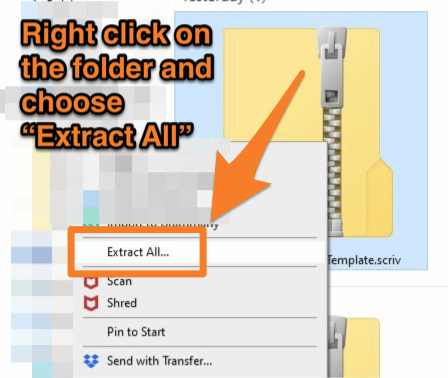
- Follow the directions to save the unzipped folder on your computer.
- Open Scrivener and select “File,” then “New Project.”
- In the lower left-hand corner of the pop-up window, click “Options” and “Import Templates.”

- Locate the .scrivtemplate file and click “Open.”
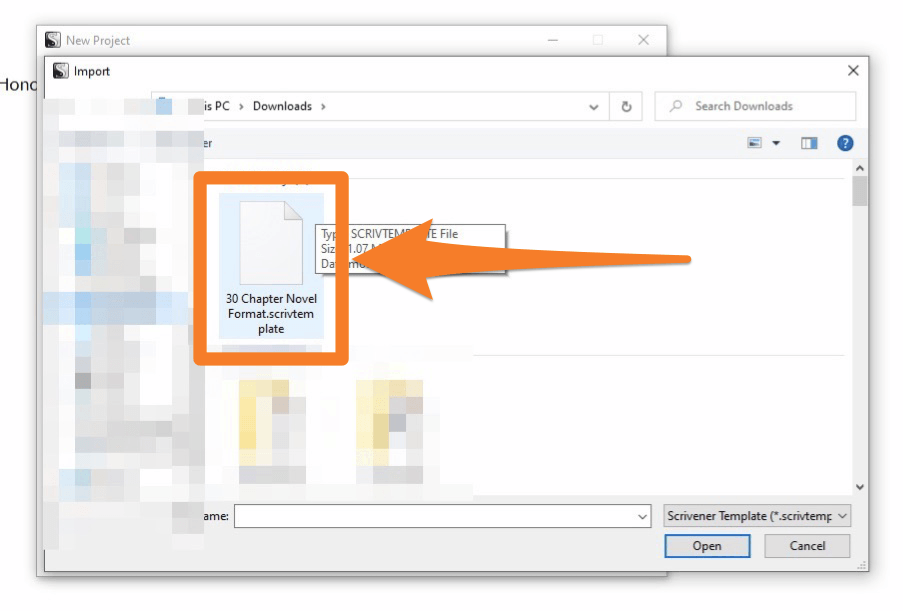
- The template will now appear in the default options in Scrivener. Select it and click “Create.”

For this example, I imported a template called “30 Chapter Novel Format.” As you can see in the image below, the template already has the various plot points you’d typically find in a novel. There is also a spot to develop your characters, collect research, and organize your book’s front and back matter.

Having this file already set up will save you quite a bit of time. Now you’re ready to start on the next task—the complicated process of planning and writing your novel!
How to Make Your Own Scrivener Template
Now you know how useful Scrivener templates are and how to install them. But if you can’t find a template that meets your needs, you can create your own. You might also want to make one if you have several projects that all use a similar layout (like a book series).
In this section, I will show you how to set up a Scrivener file and save it as a template. Doing this will allow you to keep your setup and presets consistent across several projects.
You don’t need any special skills to make a Scrivener template. If you know how to use the software, then you can make a template. The process is straightforward, but here are a few things you should remember before you create a template:
- Start with a blank Scrivener project file.
- As you build your template, leave the content blank. (For example, create and label new text blocks and folders, but don’t include anything in them.)
- Check the Meta-Data (click “Project,” then “Meta-Data Settings”) to make sure it looks right. Make any necessary adjustments.
With those things in mind, here’s how to create your own Scrivener template.
- Open a blank Scrivener project file by clicking “File” and “New Project” then choosing the blank file option.
- You will have an almost empty project file. Use the icons to customize the following items:
- Binder folders
- Documents
- Labels
- Status presets
- Compile presets
- Fonts
- Headings
- Front and back matter
- Corkboards, icons, and color-coding

- Add character sheets, story structure, and references as needed.
- When you’re satisfied with your file, select “File,” then “Save as Template.”
- In the template information box, add the title, category, description, and icon.
- Click “OK.”
Congratulations! Now you have a brand new template, and you can use it as many times as you want for any of your upcoming projects.
How to Make Changes to a Template
We’ve talked about how to find templates and import them to Scrivener. We’ve even discussed how to make your own custom templates. But what if you want to make changes to an existing template or one that you found on the web?
Sometimes you need just a few adjustments to make a template perfect. Maybe you need to change the front matter or change some icons on a template you imported. Whatever modifications you need to make, don’t sweat. It’s a simple and easy process.
Here’s how you do it.
- Open the template in Scrivener.
- Add and delete items as needed.
- Adjust icons, color coding, settings, fonts, and folders.'

- Select “File,” then “Save as Template.”
- Fill out the template information box.
- Click “OK.”
Now you have a fully customized template. You can use it for all of your future projects without having to adjust the settings each time.
How to Delete a Template
At some point, you might find yourself overwhelmed with template options. If you want to remove a template and simplify things, it’s easy to do.
While you can’t delete any of the default templates, you can remove custom ones that you’ve imported, created, modified, or duplicated. Here’s how you do it in just a few steps:
- Click “File,” then “New Project” to open the template window.
- Select the template you want to delete.
- Click “Options,” then “Delete Selected Template.”

Final Thoughts on Scrivener Templates
If you’re someone who enjoys writing in Scrivener, templates can make the experience a lot smoother. Instead of spending time setting up folders, chapter structures, or scene outlines, you can start with a project that already has the framework in place.
That’s especially helpful for longer projects where organization starts to matter more and more as the manuscript grows.
The templates above are some of the better ones I’ve come across, but there are plenty of others out there too. And if you can’t find something that fits exactly what you’re trying to write, you can always create your own template once you’ve built a project structure you like.
A lot of Scrivener users end up doing exactly that. Once you’ve dialed in a setup that works for your workflow, saving it as a template can make starting the next project a whole lot easier.