Writing a book in Google Docs may sound a little strange at first. Since it’s free with a Google account, it’s easy to assume it’s too basic for something as big as writing a full book. But for a lot of authors, Google Docs can handle the drafting stage just fine.
I’ve spent more than 10 years in publishing, and during that time I’ve used, tested, and compared a lot of writing tools. I’ve also worked with hundreds of authors, including many who use Google Docs for at least part of their writing process. So while Google Docs is not my favorite all-in-one book writing and formatting tool, I do understand why so many authors use it.
It’s simple. It’s free. It saves automatically. It works across devices. And if you’re working with an editor, co-author, or beta reader, the sharing and commenting features are genuinely useful.
That said, Google Docs has limits. It’s better for drafting and light collaboration than it is for formatting a finished book. You can use it to write your manuscript, organize chapters, track word count, leave comments, and export your work, but I wouldn’t recommend relying on it to create a polished EPUB or print-ready PDF for self-publishing.
So in this guide, I’ll walk through how to write a book in Google Docs, which features are worth using, where the software does well, and where you’ll probably want a different tool once the manuscript is ready for publication.
The Best Tool for Book Writing
While Google Docs is an option for writing your book, it’s not expressly designed for it. But Atticus is. I, and my amazing team, took the best of Google Docs and combined it with awesome features from other writing tools to make Atticus.
This all-in-one writing and formatting software has a ton of features for writers of fiction and nonfiction books. Drag-and-drop chapters, ProWritingAid integration, customization options, and goal-setting tools are just a few of the features. It’s an easy-to-use word processor in addition to a professional formatting tool. It includes 17+ built-in templates, 1,200+ design combinations, and a custom theme builder if you want more control. You can export EPUB, PDF, and DOCX files, and it’s all included in the one-time price.
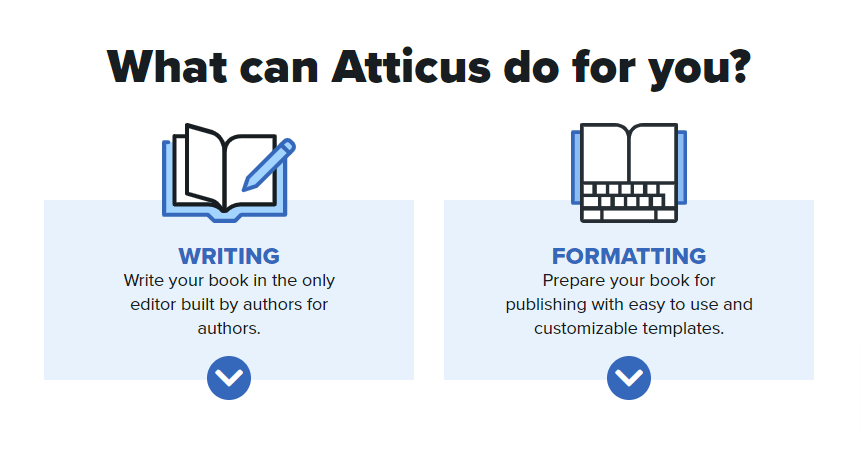
Atticus also now includes collaboration features, so you can invite co-writers, editors, and beta readers into a project with different permission levels. That means you can keep more of the writing, editing, commenting, and formatting process inside the same app.
If you want to learn more about Atticus, check out this article. To see how to write your book the more complicated way, using Google Docs, read on! I've still got you covered.
Quick Overview
What is Google Docs and why use it for writing a book?
Google Docs is a free, web-based word processing tool that allows users to create, edit, and share documents online. It’s a popular alternative to Microsoft Word and other desktop applications. One of the standout features of Google Docs is its accessibility; you can access your documents from any device with an internet connection, making it incredibly convenient for writers who are always on the go.
But why should you consider writing a book on Google Docs? For starters, it offers real-time collaboration, which means you can work with co-authors, editors, and beta readers simultaneously without the hassle of sending files back and forth. Additionally, Google Docs automatically saves your work as you type, so you never have to worry about losing your progress. And let’s not forget, it’s completely free, making it an attractive option for writers on a budget.
Benefits of using Google Docs over Microsoft Word
While Microsoft Word is still a powerful writing and editing tool, Google Docs has several advantages that may make it a better fit for some authors. Firstly, Google Docs is cloud-based, which means you can access your work from anywhere, at any time, without the need for a local installation. This is particularly useful for writers who like to work from different locations or devices.
Secondly, Google Docs allows for real-time collaboration, making it easy to work with co-authors, editors, and beta readers. You can share your document with others and see their changes and comments in real-time, which streamlines the editing process and helps you get feedback faster.
Finally, Google Docs is free, which means you can save money on software costs and invest it in other aspects of your writing career, such as marketing or professional editing services. With all these benefits, it’s clear that Google Docs is a fantastic tool for writing a book.
Pros and Cons of Writing a Book in a Google Doc
If you have a free Google account, you have access to Google Docs, Google Sheets, Google Slides, and Google Forms. These tools stand toe-to-toe with Microsoft Office and bear striking similarities in their functions. However, as our topic is centered on writing a book, I'll be zeroing in on Google Docs, which presents its own set of advantages and challenges for penning a manuscript.
Pros
- Auto-save and cloud storage so you won't lose your work.
- Free and easy to use.
- Provides basic editing tools.
- Provides a collaboration function.
- Allows you to export in multiple file formats.
Cons
- Offline access requires setup. Google Docs is cloud-based, but you can work offline if you turn on offline access ahead of time and use a supported browser.
- Not ideal for formatting for self-publishing.
Planning and Outlining Your Book
How to brainstorm ideas and create an outline for your book
Before you start writing, it helps to create a simple outline. You can do this in the same Google Doc as your manuscript, but I usually prefer a separate planning document so the draft itself stays clean.
If you do outline inside your manuscript, use Google Docs headings for your chapter names and major sections. That way, your document outline can become a simple navigation tool as the book gets longer.
Basics of Writing Your Book in Google Docs
When it comes to the mechanics of writing your book, I sincerely believe there's no one right way to do it. Some people work from an outline they have in another document or file on their computer. Others never outline, letting the creative flow take them where it will. Some people open another document for notes and research, while others keep the notes in the same document in its own section.
You'll have to figure out what's right for you, because what works for me might not for you. But the basics of this section will be handy no matter where you keep your notes (if you even take any) or whether you work from an outline.
Getting Started
To start your Google Document, find your way to your Google Drive dashboard or simply go to the Google Docs home page. Once you're signed in (if you're not already), select a new blank document.
Google Docs works well for drafting because it’s easy to access, easy to share, and simple enough that you can focus on writing instead of fighting the software.
You'll see that there are some Google Docs templates available, but none of the standard ones are book templates. Besides, I don't recommend working from a book template until you know the basics of the word processor. More on whether book templates are any good later. For now, back to your new document.
In the top left corner, type in the name of your book or a placeholder title.
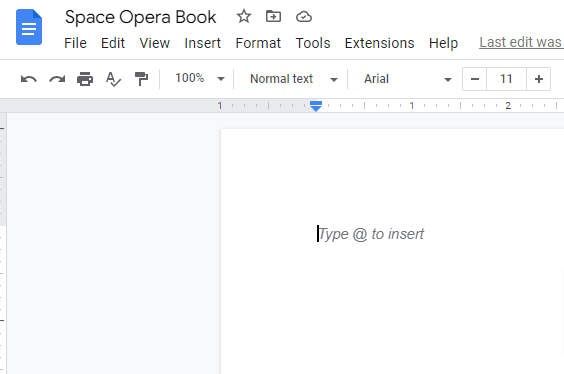
Now, you're ready to write! You can start getting the words down immediately or make the next few adjustments first. Either way, Google will auto-save any changes as they're made, ensuring that you don't lose any work.
Changing Font Size and Style
As you can see from the picture above, Google defaults to Arial text style and 11-point font size. Feel free to change this at any time. Times New Roman and 12-point font are standard for most manuscripts. But at this stage, choose one that you will like and that will be easy on the eyes.
If you want to change the text you've already entered, just highlight it and use the font menu to change it.
Adding Chapter Headings
When you're first starting a book in Google Docs, navigation is easy. But as the story progresses and 1,000 words turns into 10,000, you'll want an easy way to navigate through the document. That’s where chapter titles come in handy. Chapter headings help keep your manuscript organized as it grows. If you apply Google Docs heading styles to your chapter titles, you can use the document outline to jump between chapters and, if needed, generate a table of contents later.
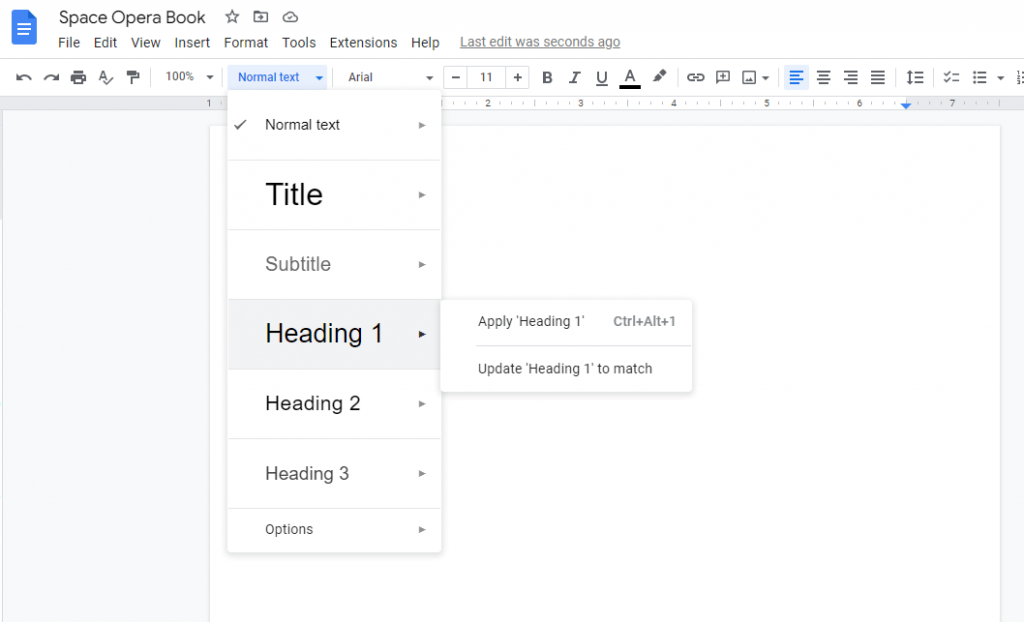
To assign a chapter heading, use the Styles menu, which should default to Normal Text unless you change it. Place your cursor next to the text you want to change, and select the appropriate header from the Styles menu. I recommend using Heading 1 for chapter headings and Heading 2 for section breaks or subheadings.
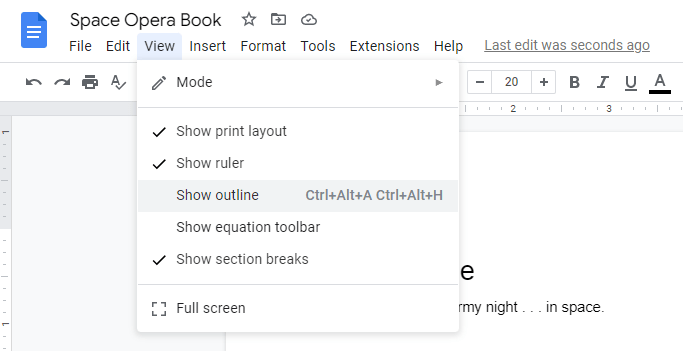
Now that you know how to assign chapter headings, it's important to figure out how to open the navigation menu so you can jump from chapter to chapter. To do this, go to the View dropdown menu and select Show Outline. A document outline will pop up to the left of your article.
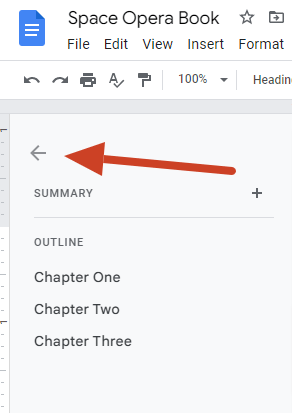
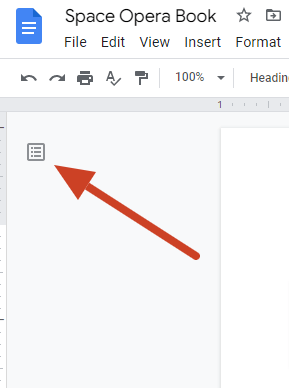
If you find this too distracting while you're writing, simply select the arrow at the top left corner of the document outline to collapse it. Then click on the little outline insignia when you want to view it again.
Word Count
It's good to have goals as you're writing a book. Whether it's 250 words a day, or 2500, you'll need a way to keep track. So to check your word count in your Google Doc, simply click on the Tools dropdown menu at the top of your document. The second option down is Word Count. You can click this to see the word count for the whole document, or highlight a specific section to count only that text. Google Docs notes that word count excludes headers, footers, and footnotes unless you select a specific portion of text.
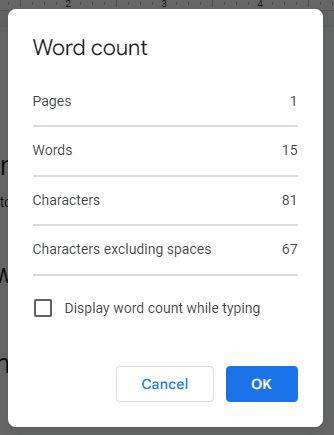
As you can see from the picture above, you also have the option to show the word count as you work by clicking the box at the bottom of the window.
Downloading a Word Document
While Google automatically saves your document as you make changes, you can also download your document for local storage.
I've never had any issues with auto-save in Google Docs, but I still download DOCX files every couple of days, just in case. This is helpful because I can just open the downloaded document in Microsoft Word to continue working if I don't have internet or I just want to use some of MS Word's more robust features.
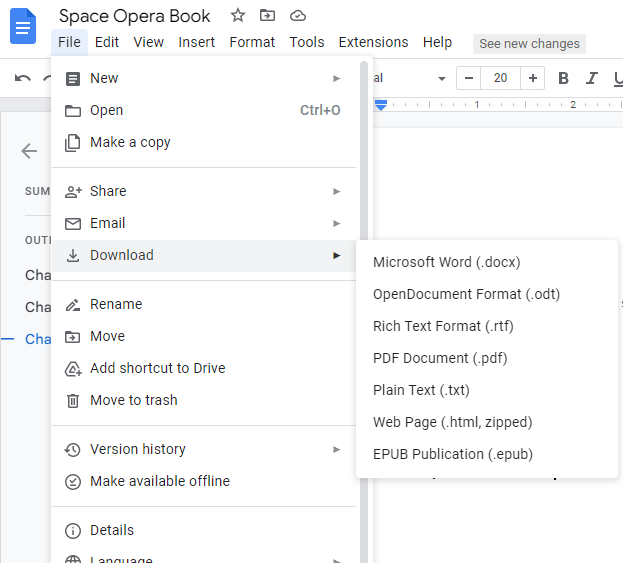
You can also download other file types, including ODT, PDF, and EPUB. Just keep in mind that Google Docs’ EPUB export is not the same thing as professionally formatting an ebook for publication. It can be useful for testing or simple files, but I wouldn’t rely on it for a polished self-published book.
Checking Spelling and Grammar
Google Docs includes a built-in spelling and grammar checker, and it’s useful for catching basic issues. I still wouldn’t treat it as a full editing solution, especially for a book-length manuscript.
(If you want more detailed feedback while working in Google Docs, tools like ProWritingAid can integrate with Google Docs through a browser extension.)
There are a couple of different ways to access this feature. You can use the Tools dropdown menu or you can simply click the little A with the check mark next to it.

If you're the type of writer who doesn't like to be distracted by spelling and grammar corrections while you're writing, use the Tools dropdown menu to toggle these selections on and off as you see fit.
Don’t forget there are proofreading and editing tools that work with Google Docs. My top recommendation is ProWritingAid, which can run inside Google Docs through its browser extension. Just note that ProWritingAid recommends using Google Docs in Pages format rather than Pageless mode for full compatibility.
Advanced Book Writing Features in Google Docs
The features I've outlined above are more than enough to get the writing process rolling. If you're just beginning, I'd suggest focusing on getting the words down and little else. It's really easy to get distracted by other things during the novel-writing process — until you develop a writing habit.
And since your doc is online, it's tempting to pop over to social media for a minute — which turns into an hour.
So if you don't yet have a daily or weekly writing habit, that's what you should focus on first. But if you're looking to see what else Google Docs can do for your writing process, I've included a couple more features in this section.
Page Breaks
While not a requirement, I like to put a page break after each chapter. This will ensure each chapter starts on a fresh page. To do this, place your cursor at the end of the preceding chapter. Select the Insert dropdown menu and find the Page Break feature near the bottom. Select Page break and start your new chapter!
Page Setup
Google Docs defaults to 8.5 by 11 inches. However, this is large for most books. So if you'd like to make the document reflect the eventual size of your print book, you can use the Page Setup feature. Simply click the File dropdown menu and you'll see it near the bottom.
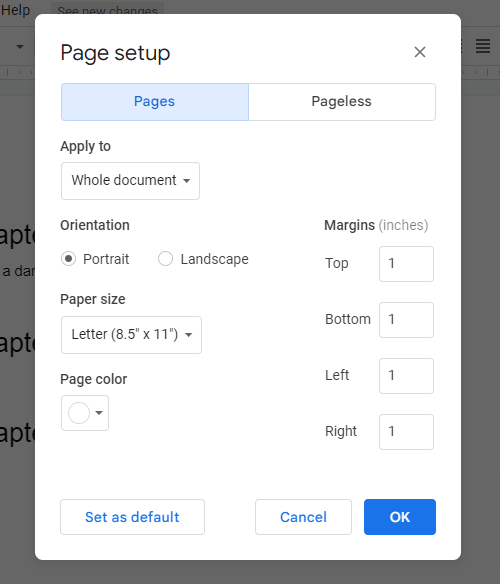
You can also change your margins here if you wish!
Accessing Your Document on Mobile
One nice thing about the Google Workspace suite is you can access it from your phone. So if you're on the bus or the train and you have a few minutes to write or edit, you can open the Google Docs app and get some work done.
You can record the work in a dedicated writing Google sheet, and even use Google Forms to create questions for your eventual Beta Readers! Indie authors can definitely get a lot of use out of these free tools beyond writing.
Editing in Google Docs
While most editors like to work using the Track Changes feature in MS Word, you do have a similar option in Google Docs. You can share your document with someone using the blue button in the top right corner.
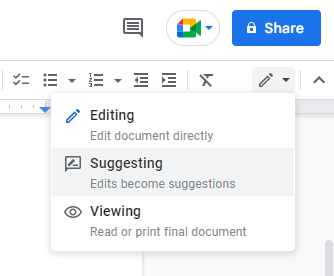
Then you can choose their level of access, selecting Commenting if you don't want them to be able to edit. You can also have them use Suggesting mode, where they can make changes that you can accept or reject. (It’s always a good idea to make a copy or download your document as-is before sharing it with anyone!)
Formatting in Google Docs
There are two main types of formatting. Which one you end up doing will depend on your goals as a writer. If you're going to submit your book for traditional publication, you'll want to check out this article on manuscript formatting.
If you’re preparing a manuscript for agents or editors, Google Docs can handle the basics: page size, margins, font, line spacing, paragraph indents, and a simple title page. Just be sure to follow the specific submission guidelines for the agent, editor, or publisher you’re sending it to.
If you're looking to publish your book on a platform like Kindle Direct Publishing, you'll need a different kind of formatting. For most indie authors, that usually means creating a clean EPUB for the ebook and a print-ready PDF for the paperback or hardcover. KDP does accept other manuscript file types in some cases, but EPUB and PDF give you more control over the final product.
You can format for submissions in Google Docs itself (see the link above). And while it's technically possible to format for indie publishing in Google Docs, I wouldn't do it if you value your sanity.
You may be tempted to use a book template for your Google Doc, then download an EPUB and call it a day. Unfortunately, even the best book template for Google Docs (or even MS Word) won't look nearly as good as 98% of the competition.
Formatting for indie publishing is more than adding a title page, adding page numbers, and making sure your table of contents is in good shape. To succeed in the world of indie publishing, your book needs to look as good as possible. Luckily, this is easy to do.
Use a Formatting and Writing App
Google Docs is a great tool for getting the words down. But when it comes time to format your book, save yourself the time and trouble by using a formatting and writing app.
As mentioned above, I recommend Atticus because it's easy to use and you can transform your manuscript with a few clicks of your mouse. You can import your finished manuscript, choose from built-in templates, customize the look of your book, preview it on different devices, and export EPUB, PDF, or DOCX files. In other words, you don’t have to spend hours trying to turn a Google Doc into a professionally formatted book by hand.
If you want to know why I think Atticus is the best, I have an article that details the best book writing software you can check out now!
Conclusion
You can absolutely write a book in Google Docs. For drafting, organizing chapters, sharing work with others, and doing some light editing, it gives you most of what you need without costing anything.
That doesn’t mean it’s perfect for every part of the process. Google Docs is not built specifically for authors, and once your manuscript gets long or you’re ready to format the book for publication, you may start to feel those limitations. That’s especially true if you’re trying to create a professional-looking EPUB, paperback, or hardcover file.
But for getting the words down, Google Docs is a solid option. It’s simple enough that you don’t need to spend days learning the software, and flexible enough that you can use it whether you outline heavily, write by the seat of your pants, or land somewhere in between.
The main thing is not to let the tool become the thing that keeps you from writing. Google Docs, Atticus, Scrivener, Word, or any other writing app can help, but none of them will write the book for you.
That part still comes one word at a time.